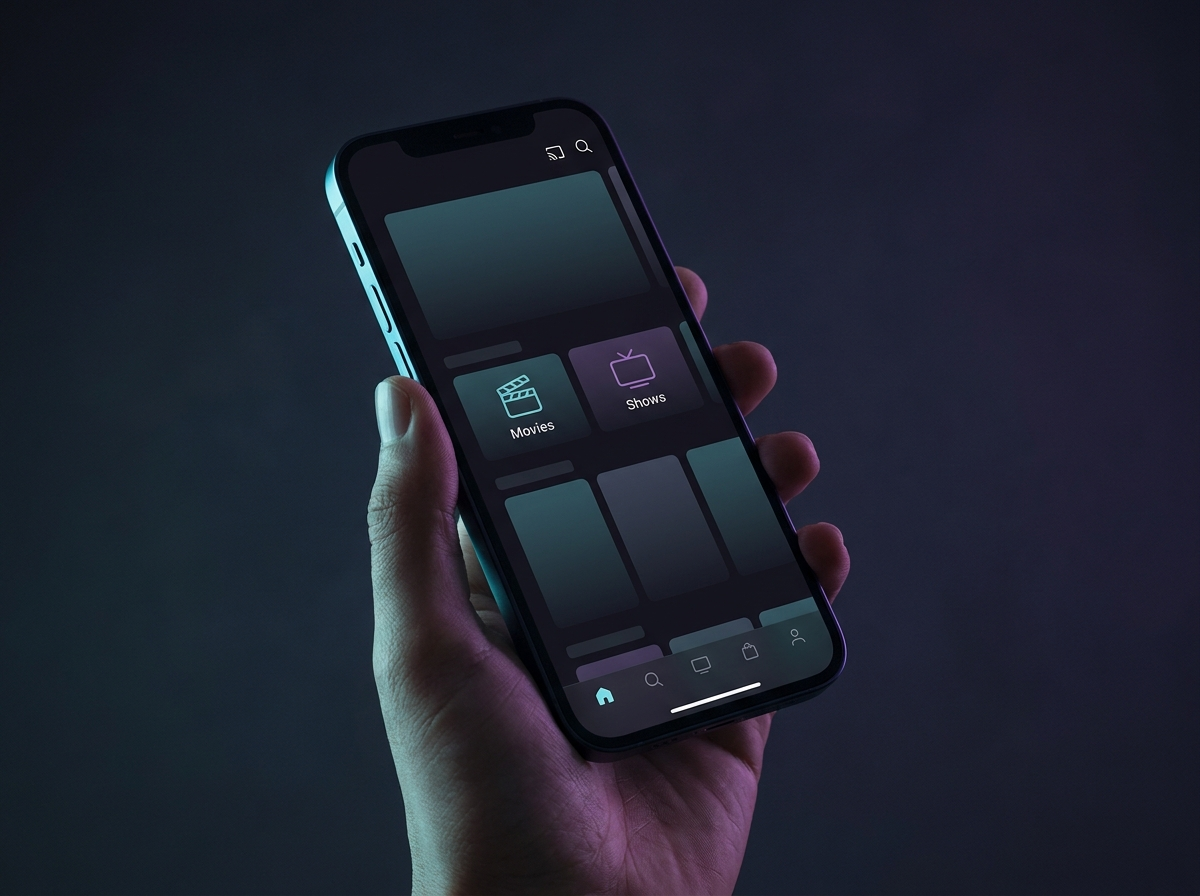
You do not need to replace your television to access Netflix, YouTube, Disney+, or live TV apps. A single HDMI port and the right device can transform any standard display into a fully connected smart TV within minutes.
Streaming Sticks: The Fastest Upgrade Path
Streaming sticks remain the most popular way to turn a TV into a smart TV. Devices like the Roku Streaming Stick, Amazon Fire TV Stick, and Google Chromecast with Google TV plug directly into HDMI and draw power from a USB port on your TV or wall adapter.
Each platform has strengths. Roku offers the simplest interface and widest app support. Fire TV integrates tightly with Alexa smart home controls. Google TV provides excellent search across streaming services and ties into the Google ecosystem.
What to Look For
- 4K and HDR support — match your TV's resolution for the best picture quality
- Wi-Fi 5 or Wi-Fi 6 — reduces buffering on demanding streams
- Voice remote — hands-free search saves time during movie nights
- Storage space — at least 8 GB for smooth app updates
Pro tip: After setup, use your phone to capture sharp photos of your new home theater layout. Our guide on installing GCam for sharper phone photos helps you document cable routing and screen calibration settings in detail.
Set-Top Boxes for Power Users
If you want more processing power, Ethernet ports, or expandable storage, a set-top box like Apple TV 4K, NVIDIA Shield TV, or Xiaomi Mi Box S is worth the investment. These devices handle 4K HDR content smoothly and support advanced features like Dolby Atmos passthrough and game streaming.
Set-top boxes sit on your media console rather than hiding behind the TV. They are ideal for home theater setups where you want a dedicated remote, wired networking, and consistent performance during peak streaming hours.
Built-In Smart TV Platforms
Many modern televisions ship with smart platforms already installed — Samsung Tizen, LG webOS, Google TV, and Roku TV are common. If you recently bought a TV, check whether it already includes the apps you need before purchasing additional hardware.
When a built-in platform feels slow or lacks apps, a streaming stick often outperforms the TV's native software. Disable the TV's Wi-Fi on the built-in platform and switch the default input to your stick for a cleaner experience.
Setting Up Your Smart TV in Five Steps
- Connect the streaming device to an available HDMI port.
- Plug in the power cable and switch the TV input to that HDMI source.
- Follow the on-screen setup and connect to your Wi-Fi network.
- Sign in to your streaming accounts — Netflix, YouTube, Spotify, and others.
- Organize your home screen and pin your most-used apps for quick access.
Once your living room is connected, consider mirroring diagnostic dashboards from your garage. If you work on vehicles at home, our tutorial on scanning your car with a smartphone shows how to display OBD2 data on any screen with casting support.